

Lumi Web > Planning Tools (Lumi Web)
Surgical planning tools can be added to the hologram:
-
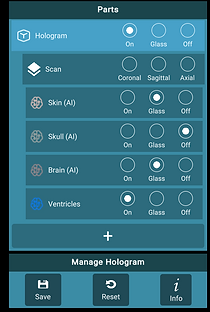
From the hologram menu in Lumi Web, select the + button
-
Select Surgical Planning
-
Add pointers, lines, spheres, EVD lines, and/or planes
-
Pointers can be used to indicate a point of interest in the 3D patient
-
Lines ca be added to the 3D patient to mark a straight line between 2 points of interest and measure the distance between 2 points of interest. Also, a trajectory or approach can be indicated.
-
Spheres can be used to simulate a structure (a tumor for example), when used in combination with Shape Edit (see: Shape Edit Lumi HL2)
-
EVD lines can be used to indicate the EVD trajectory and is used in combination with LumiNE Elite (see: LumiNE Elite (EVD))
-
Planes can be added to the 3D patient to simulate a cutting plane
-
Add Surgical Planning Tools in Lumi Web


The surgical planning tools can then be moved in Lumi Web:
-
Select the planning tool in the hologram menu
-
Select 'Transform'
-
The planning tool can be translated, rotated, and scaled
-
Note: all movements can also be done in x0.1 mode for precise manipulation
-
Move Surgical Planning Tools
